ZR Express setup guide
Account setup, test order, label and status verification, recovery and disconnection.
To connect ZR Express, use your own carrier account, save the credentials, then check rates and destinations before preparing a confirmed order. Preparing books parcel data with the carrier; printing a label and confirming dispatch are separate actions.
Before you start
- Sign in as the store owner. Obtain tenantId and secretKey from your ZR Express account administrator. Do not share them in support messages or screenshots.
- Check that your current plan permits the integration and review your carrier account terms. The pricing page explains ARKAN plans; an ARKAN account does not automatically provide a carrier account or carrier tariff.
- Check the product, Algerian phone number, address, wilaya, commune and delivery method. Use authorized test data and carrier-approved test conditions: Prepare can create a real booking.
Available actions and evidence limits
For the operations below: source-code review by Codex on 2026-11-02 and the owner’s general workflow attestation on 2026-10-21. Independent receipts for each carrier operation are unavailable; screenshots are local simulations. An action implemented in source does not guarantee that your carrier account permits it or that it succeeds.
- Fee import
- ZR Express account rates can be fetched, then home/desk prices and destinations reviewed before saving and confirming delivery. Rates and coverage depend on the account; the wilaya list is not a coverage guarantee.
- Parcel preparation and dispatch
- Preparing a confirmed order books a parcel and may return a tracking reference. Dispatch is a separate action within your authorized handover process; do not trigger it to produce a screenshot or proof. An ARKAN test classification does not put the carrier in a sandbox.
- Label printing
- Individual and merged labels for booked parcels depend on the carrier account response. Check the reference, address and amount; a label does not prove delivery or a transfer of funds.
- Status updates
- ZR Express statuses arrive through the store’s webhook and may be delayed. Compare with the carrier account when needed; do not assume immediate updates or the polling mechanism used by another carrier.
- Return status and handling limits
- Some incoming carrier statuses can mark the order returned. This does not request a parcel return from the carrier or prove physical receipt or a shopper refund. Arrange actual returns and fees under your carrier contract.
- COD settlement and reconciliation
- This guide does not establish a workflow for paying COD proceeds to the merchant or reconciling a carrier statement. A delivered or collected status does not prove that your account received the funds. Check the carrier’s statement and settlement; ARKAN subscription payments are separate from your store’s order proceeds.
Connect and verify, step by step
These screenshots show a local demonstration with synthetic data and simulated carrier responses. They do not prove a real shipment or carrier acceptance. The screenshots show the merchant interface in Arabic; the descriptions below explain the corresponding actions.
-
Select ZR Express and save your account credentials
Open Settings → Carrier integration and select ZR Express. Enter tenantId and secretKey in their fields, check the connection status and save the integration settings. If connection fails, correct the credentials or account permissions; seeing the fields is not proof of connection. Saving a valid connection also attempts to register a status webhook.
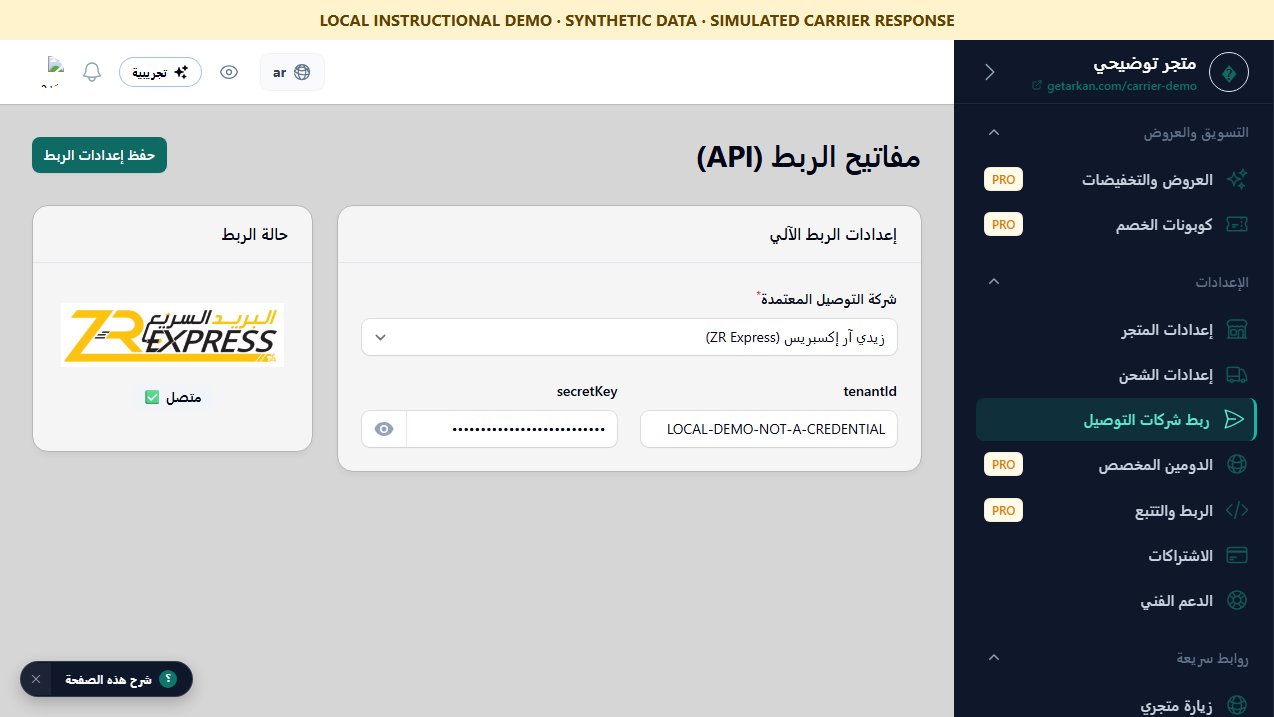
Local demonstration: carrier selection, account fields and save action. The displayed credentials are not real. -
Review home and desk rates, then confirm delivery
Open shipping settings and fetch delivery rates when available for your account. Review home and desk prices and enabled destinations, adjust as needed, then save and confirm delivery. Do not enable a destination or method your carrier account does not serve. After changing carriers, fetch and review the new carrier’s rates. The interface’s list of 58 wilayas does not guarantee every destination.
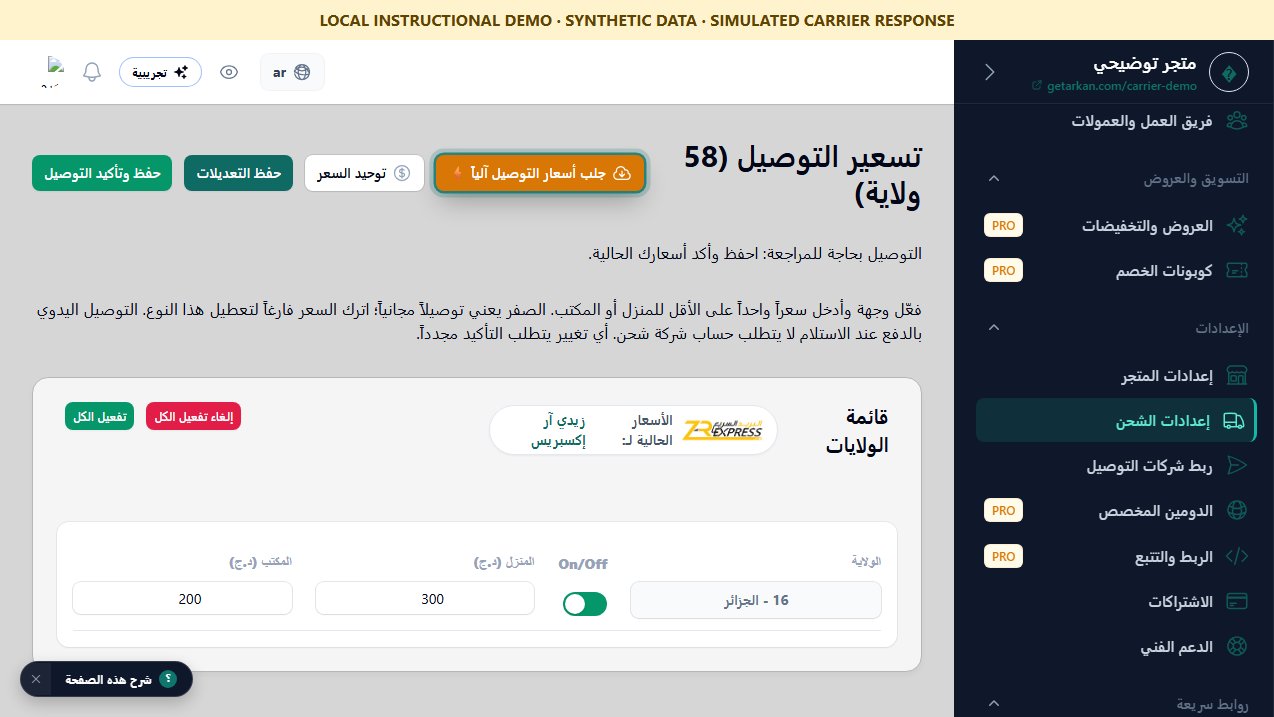
The 300 and 200 DZD amounts are simulated examples, not published ZR Express tariffs or a commercial offer. -
Confirm the test order, then prepare it once
Create an ARKAN order classified as test using authorized data and review it in Orders. Approving the order moves it to confirmed. After checking carrier test conditions, select Prepare and read the confirmation before accepting. A successful booking adds a tracking reference and moves the order to processing. Do not select Dispatch just to take a screenshot: it is a separate action for your authorized handover process. Classifying an order as test in ARKAN does not automatically switch the carrier API to a sandbox.
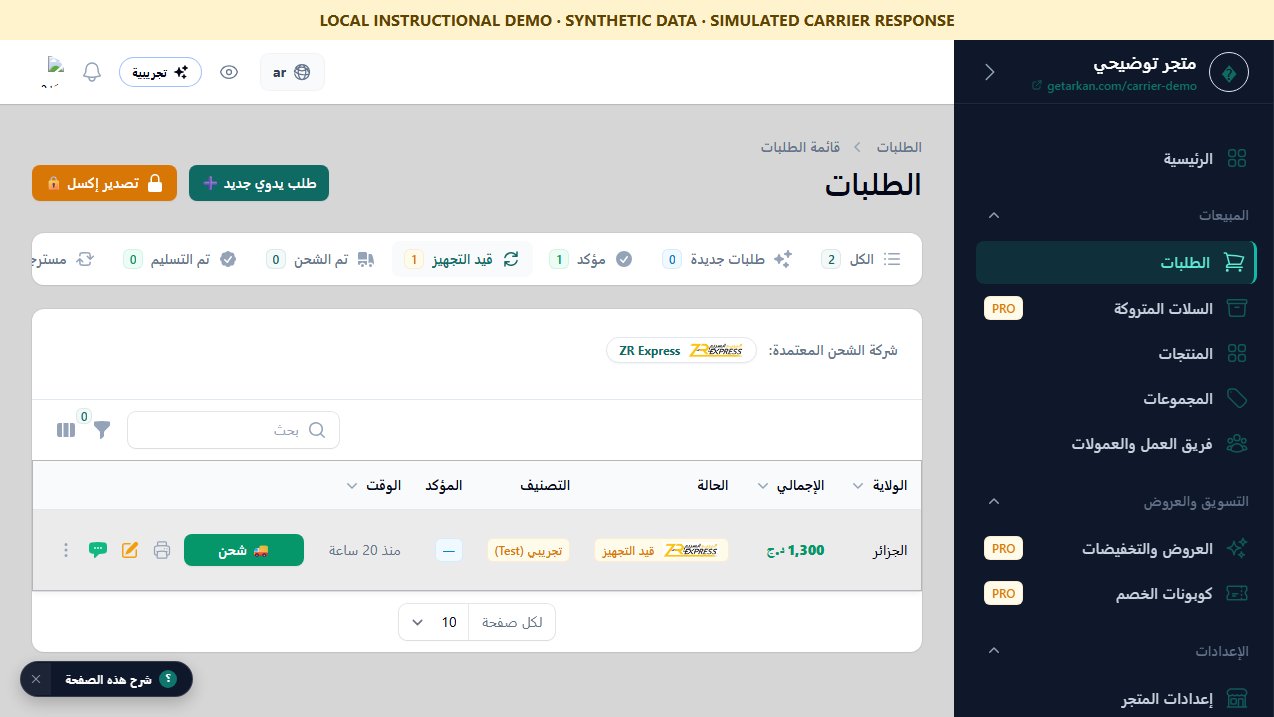
Names, addresses and numbers are entirely synthetic. A LOCAL-DEMO reference does not identify a real parcel. -
Check the label and status before handover
On a processing order’s row, use the printer icon to open its label. Check tracking reference, address, delivery method and amount before printing and packing. Review order details and tracking history, comparing with the carrier account when needed. ZR Express statuses arrive by webhook; do not assume the same scheduled polling used by EcoTrack integrations. Status updates may be delayed, and a reference or PDF does not prove delivery. Dispatch or cancel only within your authorized workflow.
-
Correct the cause before retrying
For a connection rejection, check tenantId, key and account permissions. For an order rejection, check phone, wilaya, commune, address, home or desk availability, and carrier/rate consistency. Read the specific error. After a timeout or uncertain booking result, check the carrier account and order reference before preparing again to avoid duplicate bookings. If the label or status is missing, check the parcel with the carrier and request help without sharing keys or customer data.
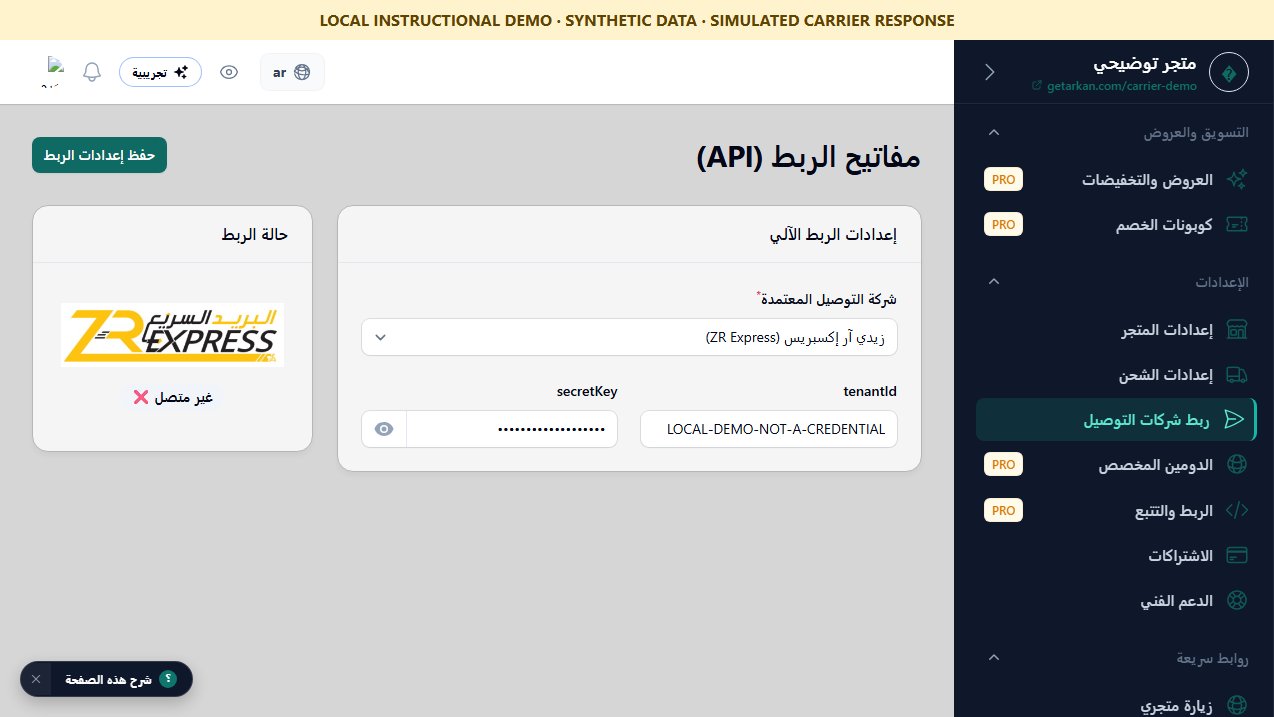
Local example of a failed connection; it is not a record of a real carrier outage. -
Understand the limits of choosing no automatic integration
In carrier settings, select I do not use automatic integration and save. This removes the selected carrier from the preparation path for new orders; it does not delete stored ZR Express credentials, remove its webhook or cancel existing parcels. Updates and actions for those parcels may continue. For full access removal, coordinate key revocation, webhook removal and reservation checks with the carrier account administrator. Changing the ARKAN selection does not confirm revocation at the carrier.
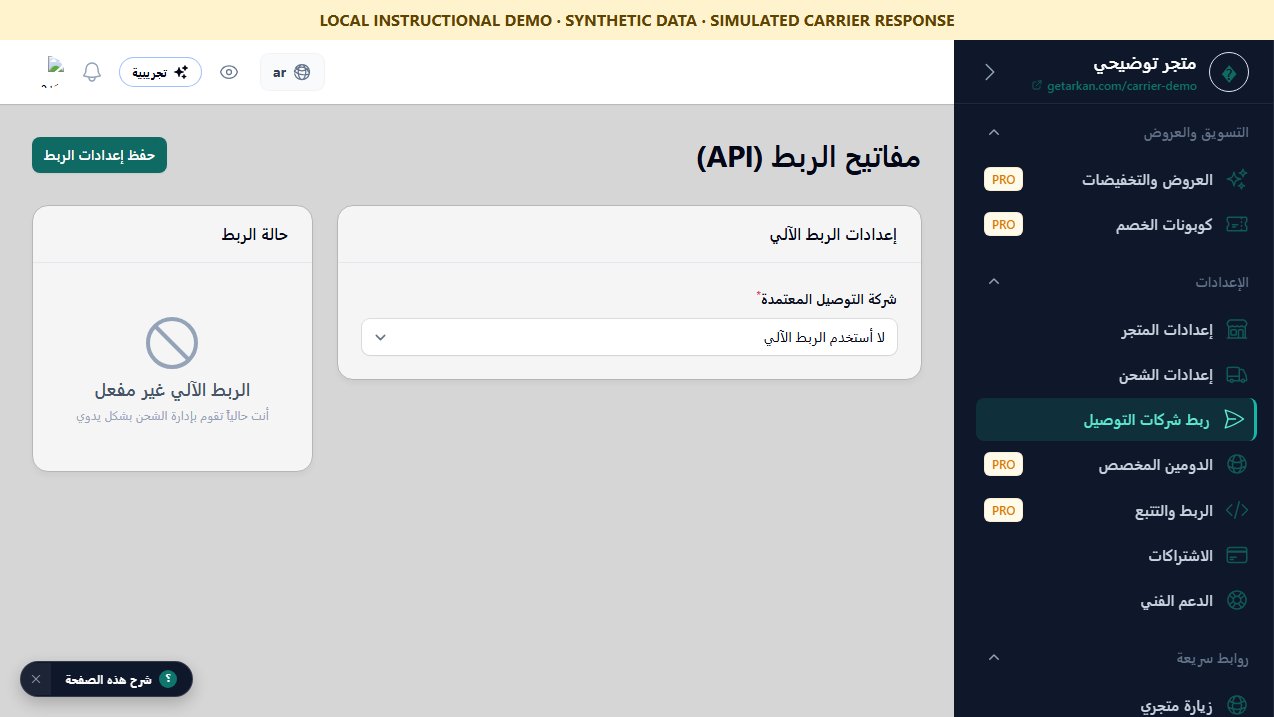
Changing the active carrier does not erase credentials or cancel bookings or existing status updates.
Coverage, fees and guide limitations
- Coverage, rates and cancellation conditions depend on your carrier account, destination and parcel. This guide guarantees no nationwide coverage, delivery time or official partnership: the relationship is a technical integration.
- ARKAN charges 0% platform sales commission. Carrier shipping, returns and collection fees are separate under your carrier contract; domain registration and renewal are separate too. Check the current plan and do not treat screenshot examples as a quote.
- This guide covers ZR Express only. A legacy field or another carrier’s logo does not prove a supported workflow. The Yalidine guide remains unpublished pending its evidence.
- Keep customer data and credentials out of public material. Redact phone numbers, addresses, identifiers and tokens before sharing a screenshot with support.
Workflow sources and editorial responsibility
The platform owner confirmed the setup, testing and recovery workflow on 2026-10-21. Historical execution times and receipts for each carrier operation are not retained here. Codex reviewed the instructions against source code and a local interface on 2026-10-26. Screenshots are simulated illustrations, not an independent provider replay or merchant outcomes. Fee exclusions use the owner’s commercial-fact review dated 2026-10-21. This guide does not establish a sales or search-visibility improvement.
Codex ·